Connect Feishu / Lark
Connect your ClawCreek agent to Feishu (飞书) or Lark so it can chat in DMs and reply when @mentioned in groups. Takes about 10 minutes. You'll create a Lark app, copy its credentials into ClawCreek, paste the webhook URL back into Lark, set permissions, and publish a version.
You need a Feishu/Lark account that can create a custom app (自建应用) in your organization's developer console. 飞书 (China): open.feishu.cn · Lark (international): open.larksuite.com. The two are the same product; the steps are identical.
Open the Lark / Feishu Developer Console
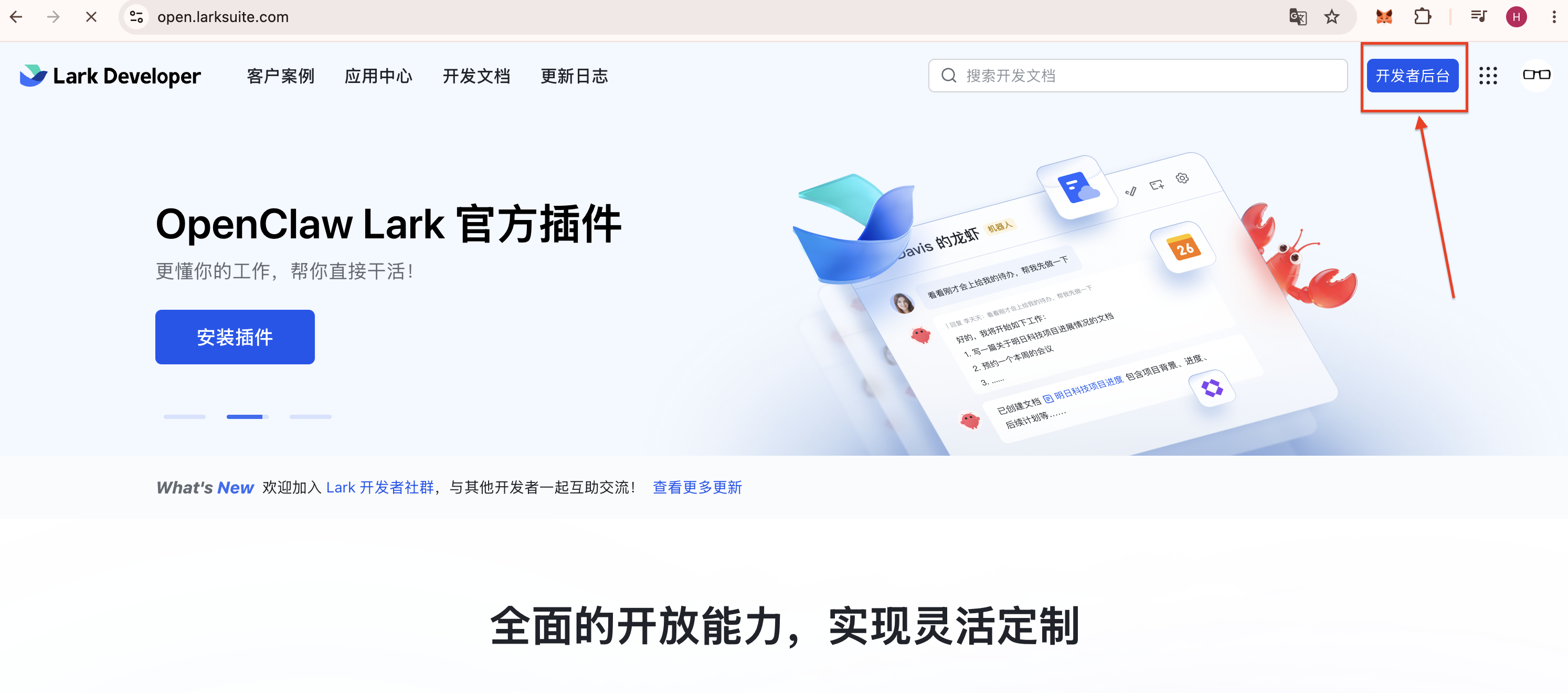
Go to open.larksuite.com (Lark) or open.feishu.cn (飞书) and click 开发者后台 (Developer Console) in the top-right corner.
Create a custom app
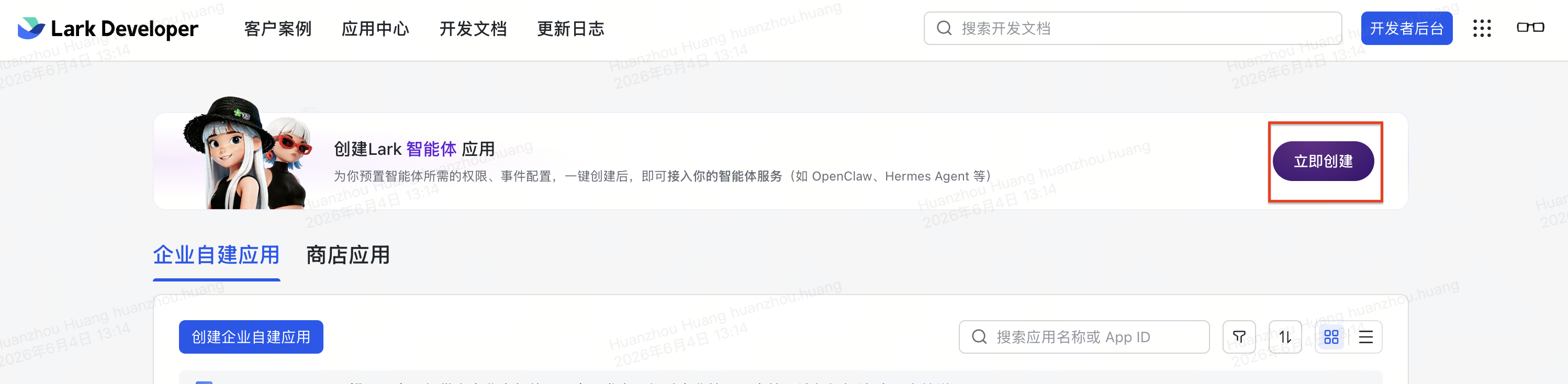
Click 立即创建 to create a new custom app (企业自建应用 / Lark 智能体应用). Give it a name and icon — this becomes your bot.
Copy the App ID and App Secret
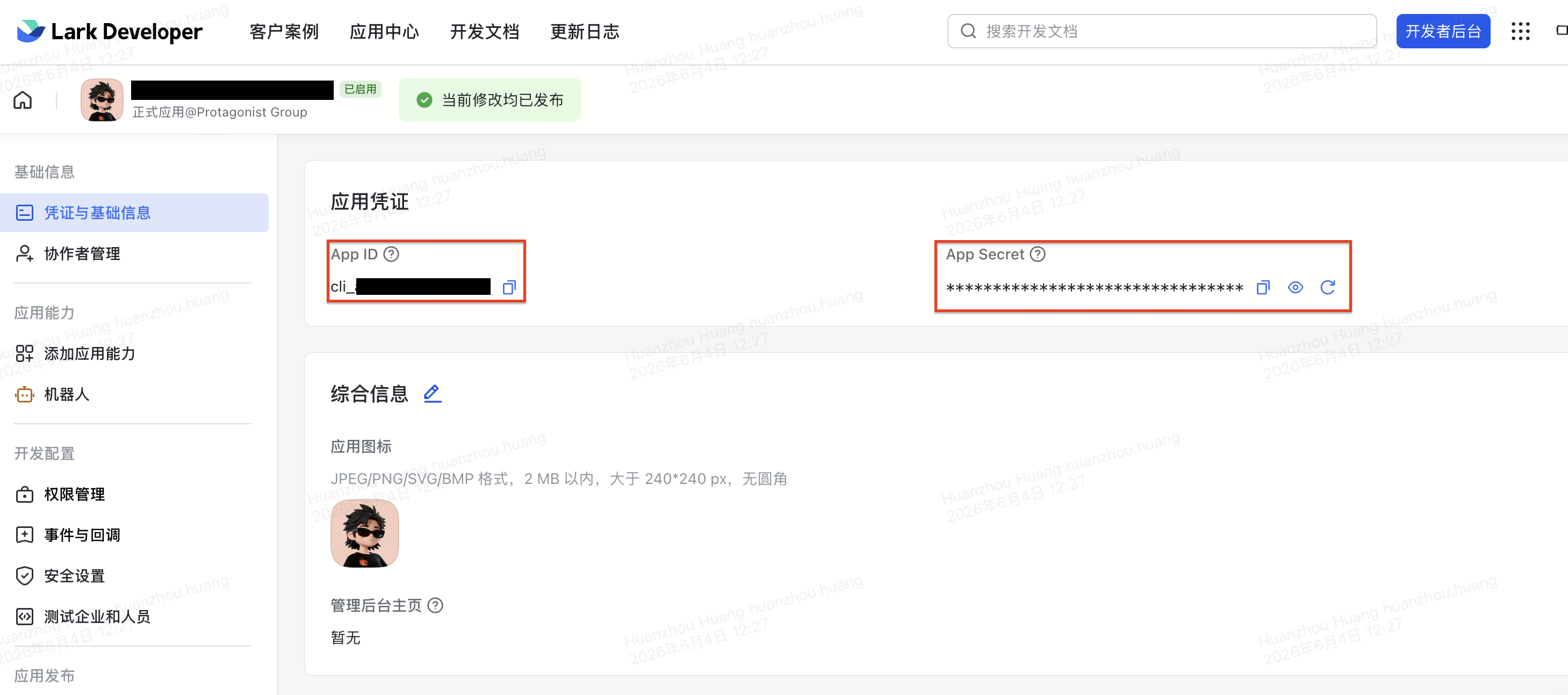
Open 凭证与基础信息 (Credentials & Basic Info). Copy the App ID and App Secret — you'll paste both into ClawCreek in step 5. Keep the App Secret private, like a password.
Get the Encrypt Key and Verification Token (recommended)
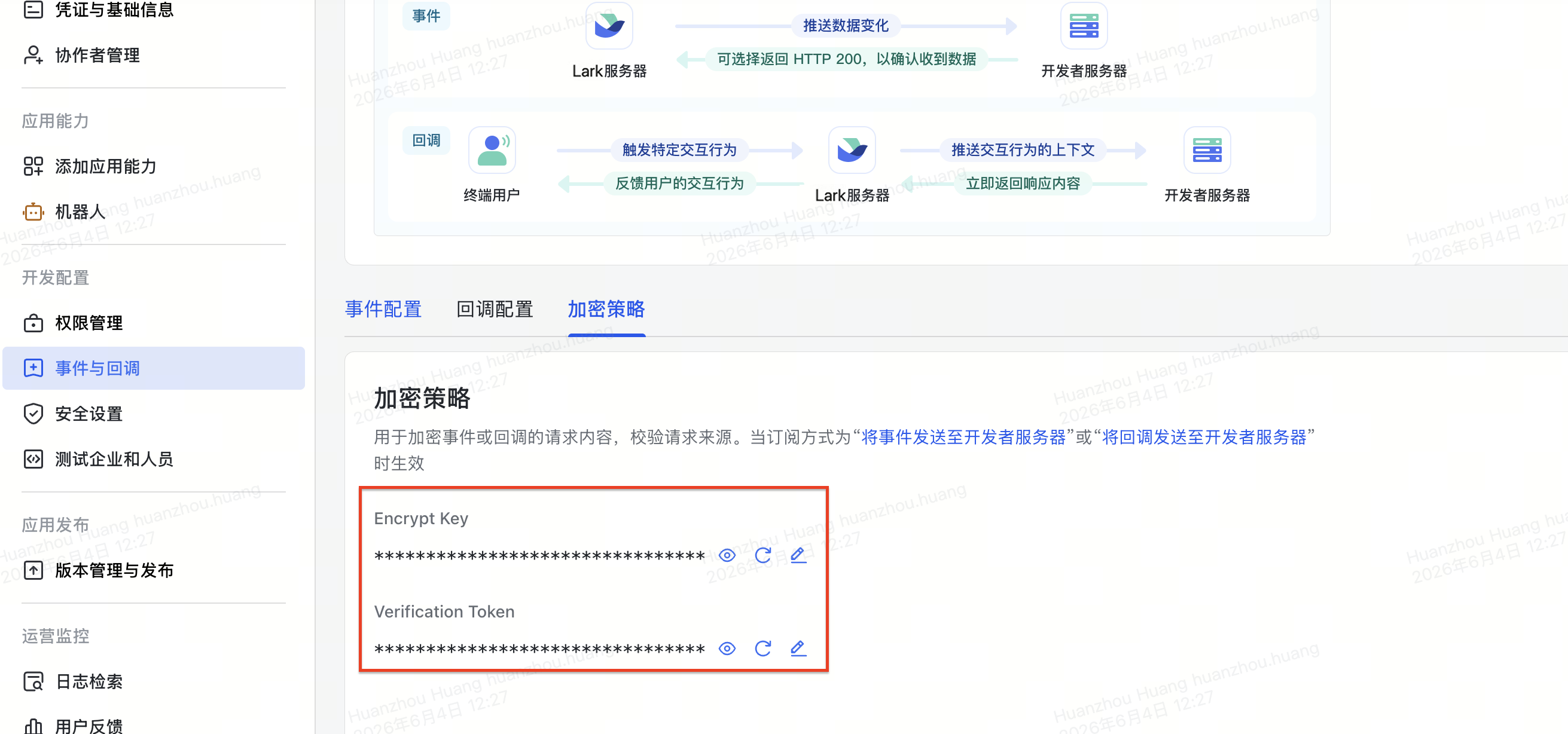
Go to 事件与回调 (Events & Callbacks) → 加密策略 (Encryption Strategy). Note the Encrypt Key and Verification Token — they authenticate and encrypt the events Lark sends you.
Paste the credentials into ClawCreek
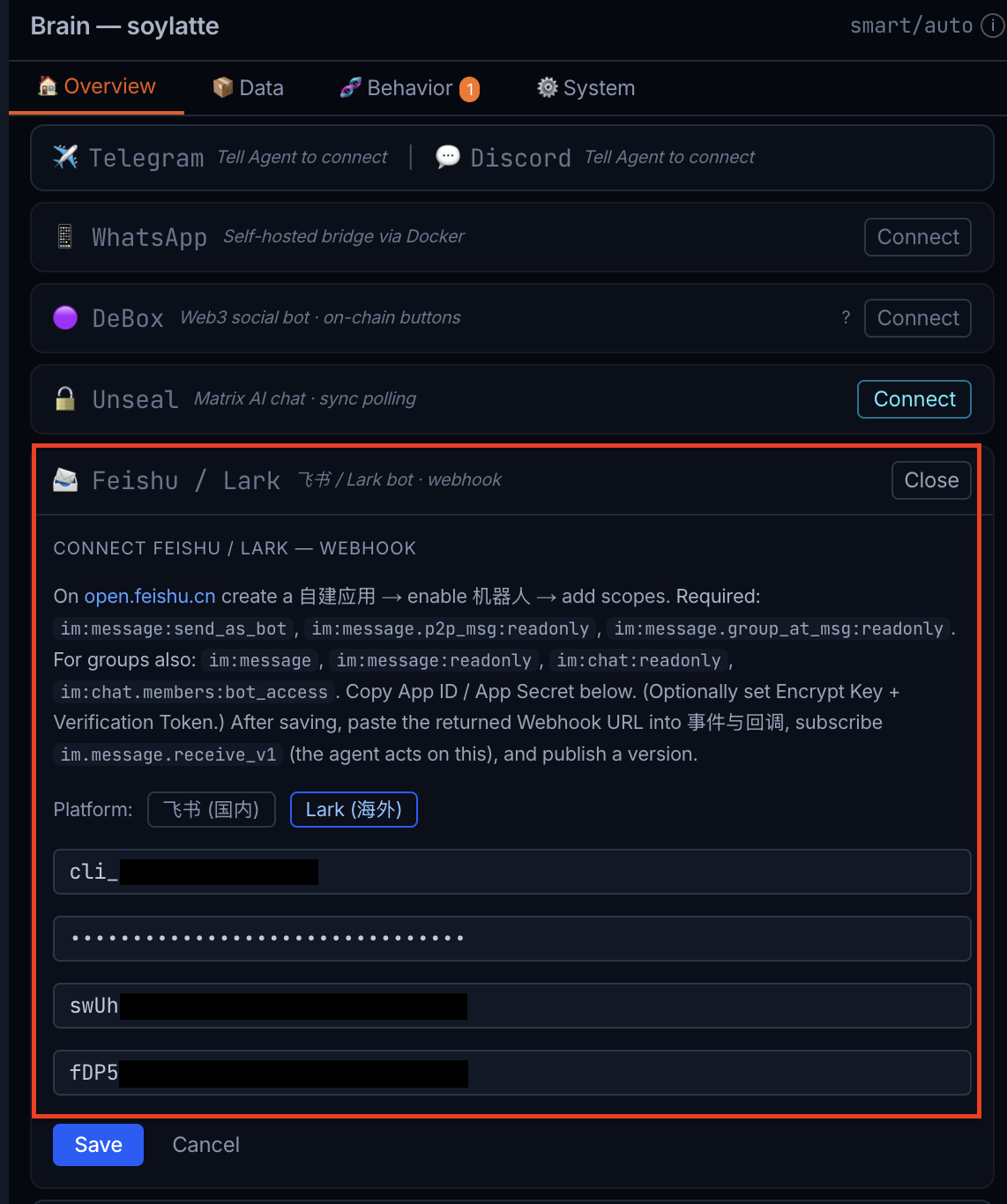
In ClawCreek, open the Brain panel → Channels → Feishu / Lark → Connect. Pick your platform (飞书 for China / Lark for international), then paste the App ID, App Secret, and — if you set them — the Encrypt Key and Verification Token. Click Save.
Copy the Webhook URL
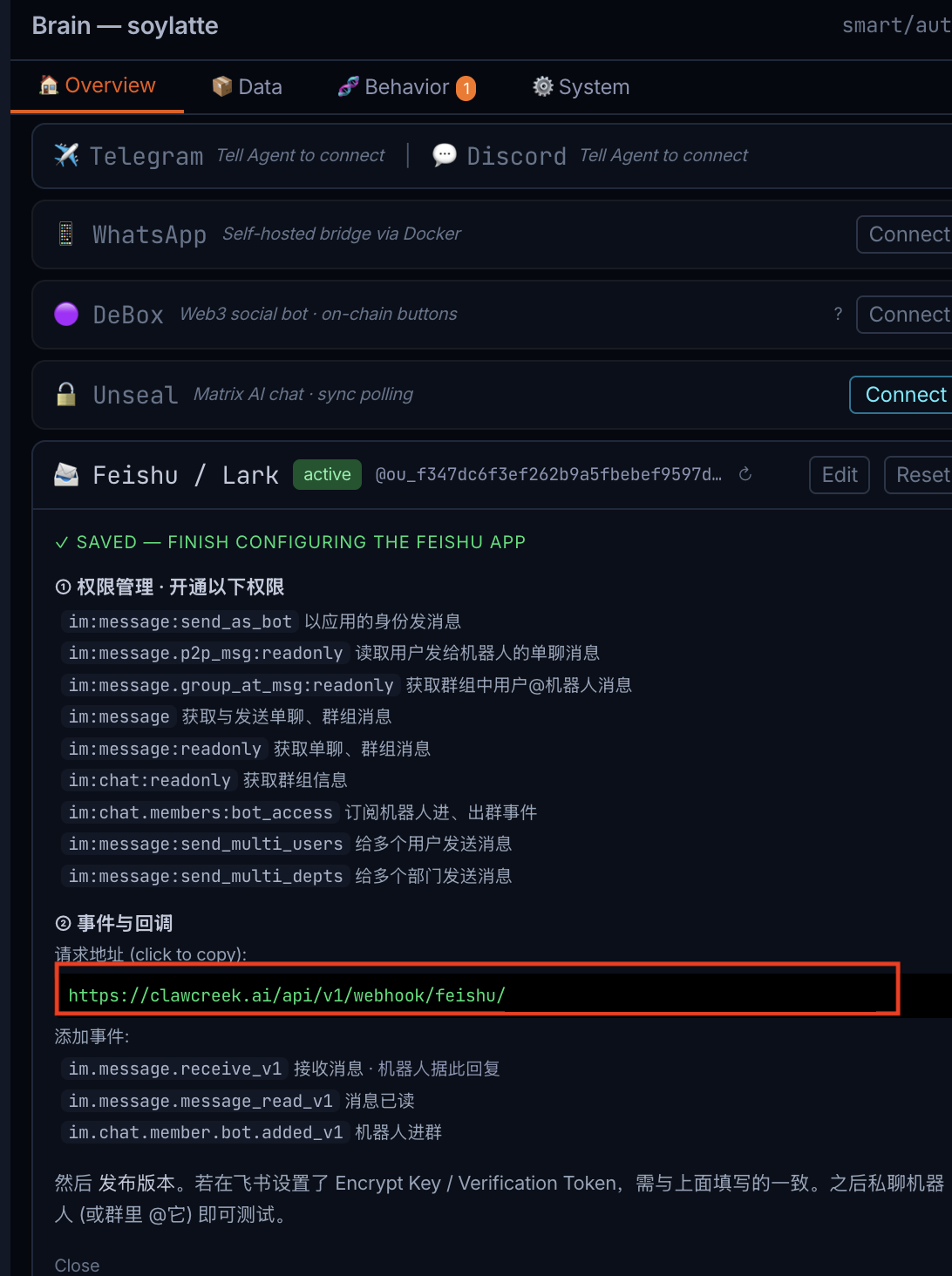
After saving, ClawCreek returns a Webhook URL that looks like https://clawcreek.ai/api/v1/webhook/feishu/<your-agent-id>, plus the list of permissions and events to enable. Copy the Webhook URL — you'll paste it back into Lark next.
Paste the Webhook URL into Lark
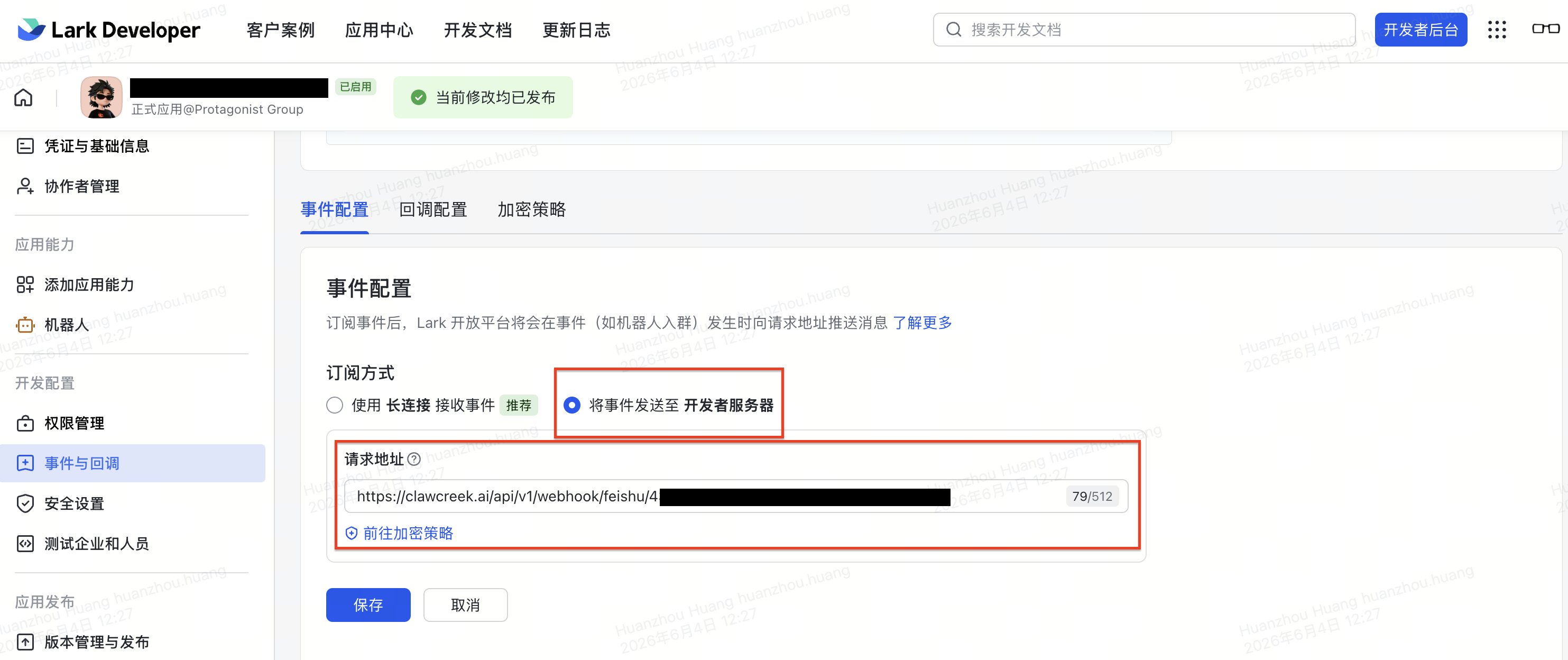
Back in the Lark console's 事件与回调 (Events & Callbacks) → 事件配置 (Event Configuration), choose 将事件发送至开发者服务器 (send events to the developer server) and paste your Webhook URL into 请求地址 (Request URL). Lark sends a verification challenge — ClawCreek answers it automatically, so it saves successfully. Then add the event im.message.receive_v1 so the bot actually receives messages.
Save
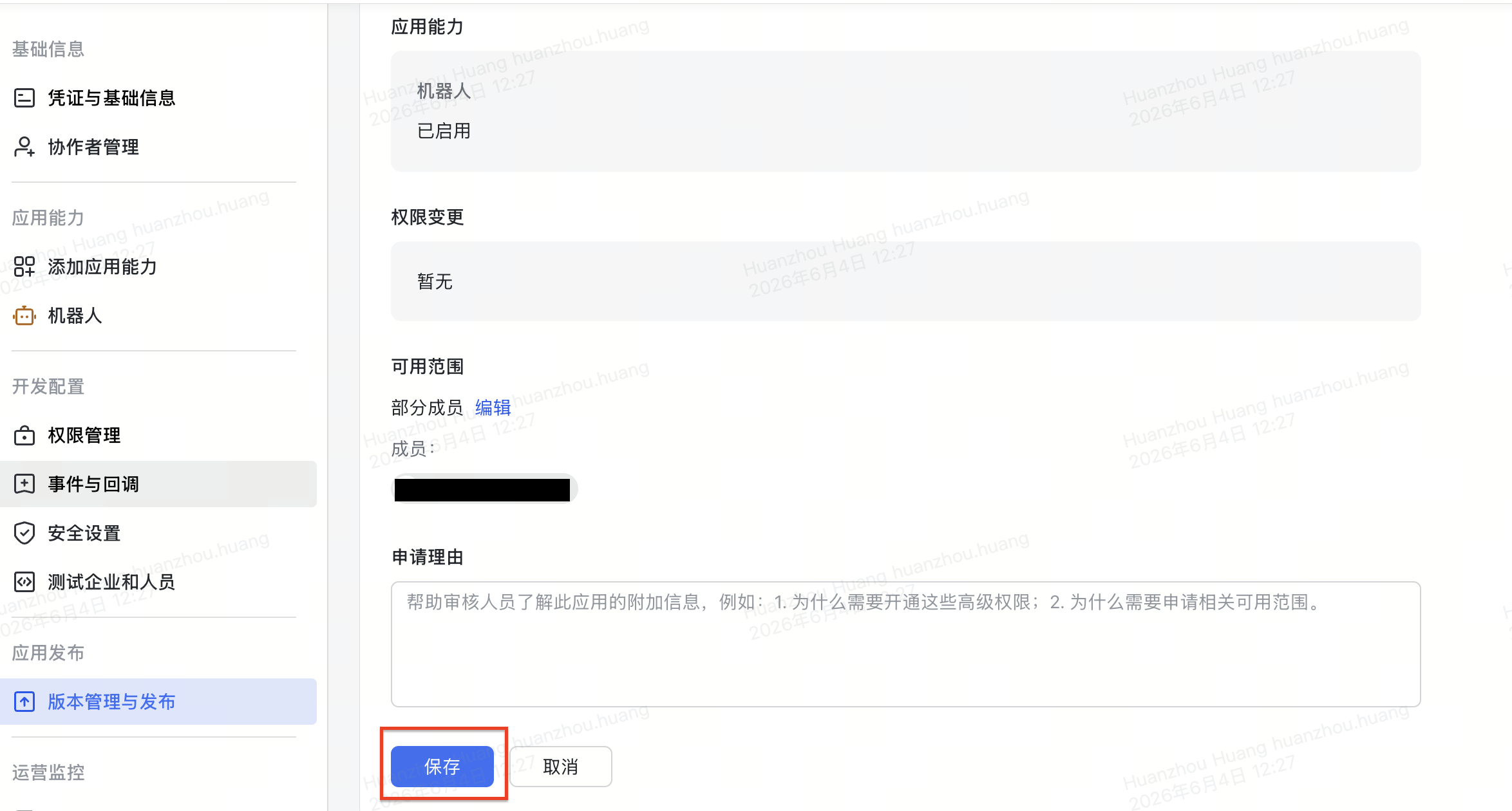
The 智能体应用 (AI agent) template already provisioned the bot capability and permissions for you — there's nothing to configure on this screen. Just click 保存 (Save). If the bot later can't send or receive messages, the scopes may be missing — add them per the FAQ below.
Create a version
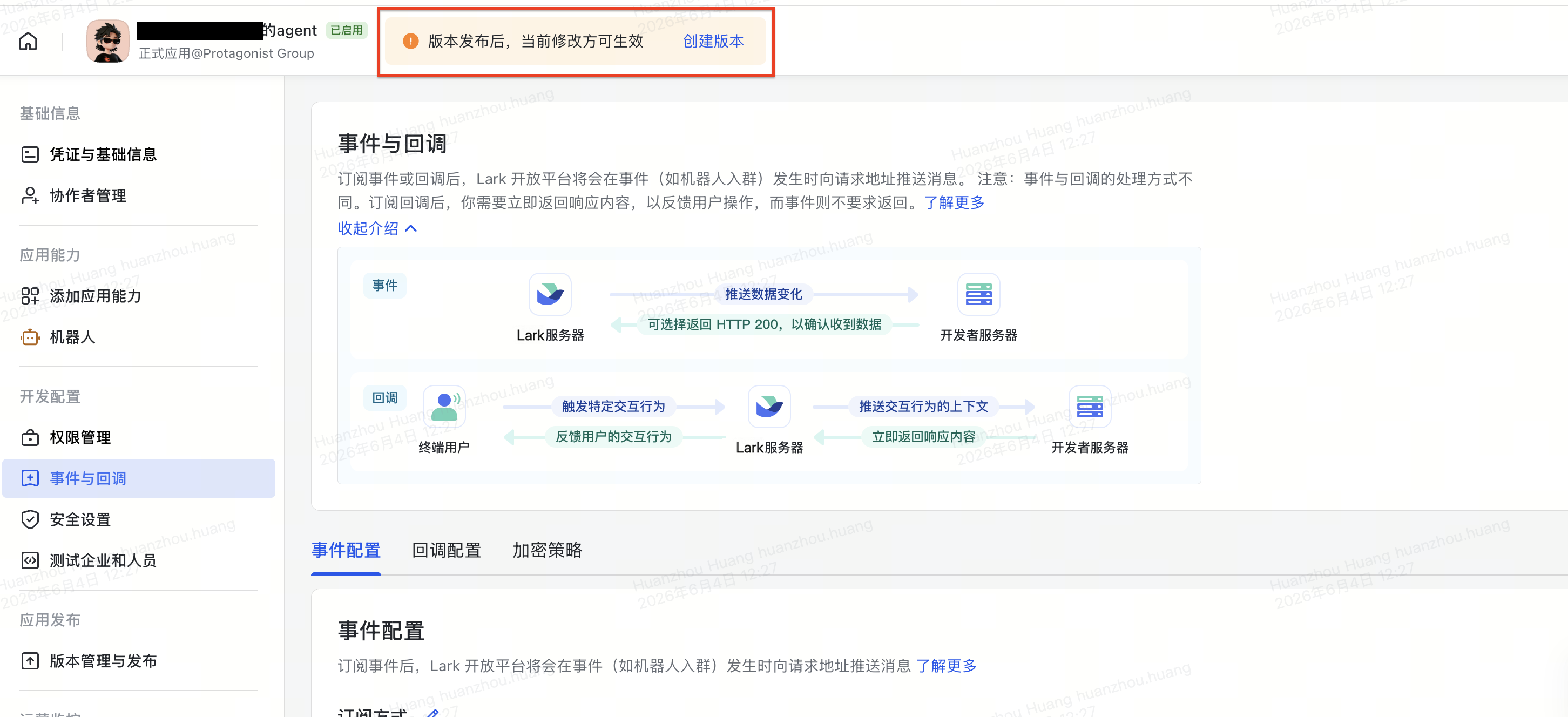
Once everything above is filled in and saved, Lark reminds you that changes only take effect after a version is published. Click 创建版本 (Create Version) in the top-right to make a version draft.
Submit the version for release
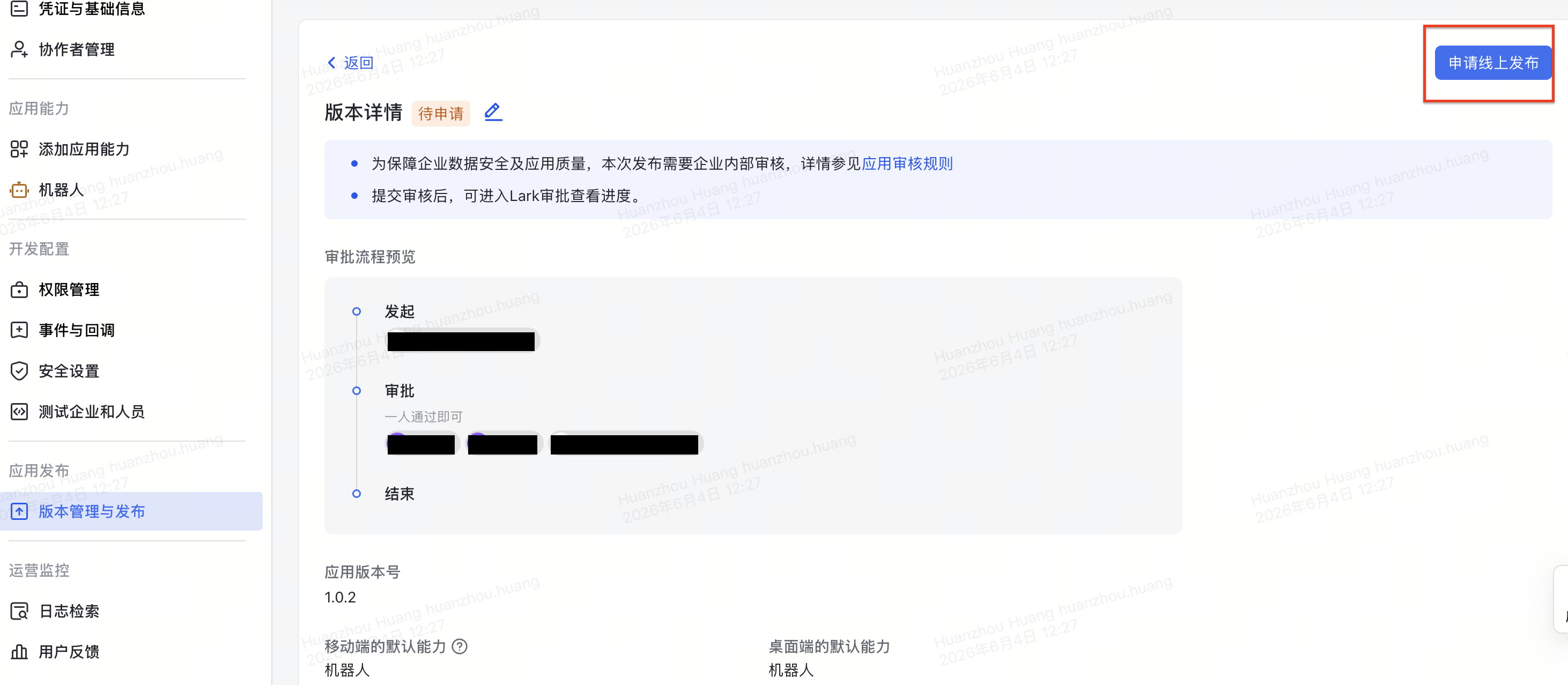
On the version detail page, click 申请线上发布 (Request Release). Fill in a version number and a short description, then submit it for your organization admin's approval.
Done — test it
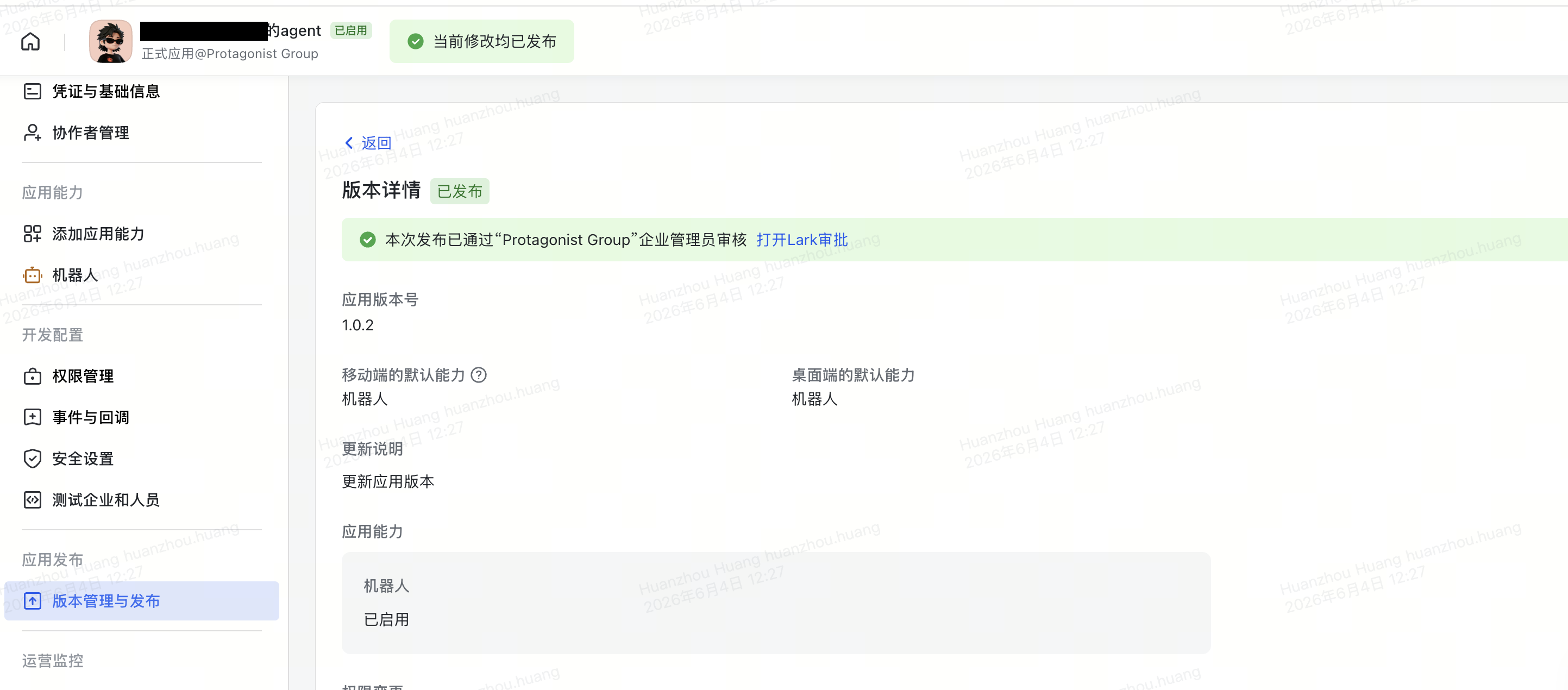
Once the version is approved and published, the bot is live. DM it, or @mention it in a group, to test. To make the agent recognize you as its owner across platforms: in ClawCreek web, ask your agent to generate a merge code, then send verify_merge_code <code> from Feishu.
Troubleshooting
What permissions and events does the bot need?
The 智能体应用 template usually configures these for you. If the bot can't send or receive messages, add them by hand in the Lark console — there are two parts:
{"scopes":{"tenant":["im:chat.members:bot_access","im:chat:readonly","im:message","im:message.group_at_msg:readonly","im:message.p2p_msg:readonly","im:message:readonly","im:message:send_as_bot","im:message:send_multi_depts","im:message:send_multi_users"],"user":[]}}im.message.receive_v1 im.message.message_read_v1 im.chat.member.bot.added_v1